Using Google Translate
New Zealand is a culturally-diverse country. This means that when sending text messages out to your staff or customers, it's probable that you'll be contacting people that have English as a second language. So that you can ensure that all recipients can understand the messages you send, My A2P Message has a Google Translate feature. This feature makes contacting people that speak a language other than English easy. You can use the Google Translate feature to translate both messages you send, and replies that come through.
Setting up Google Translate
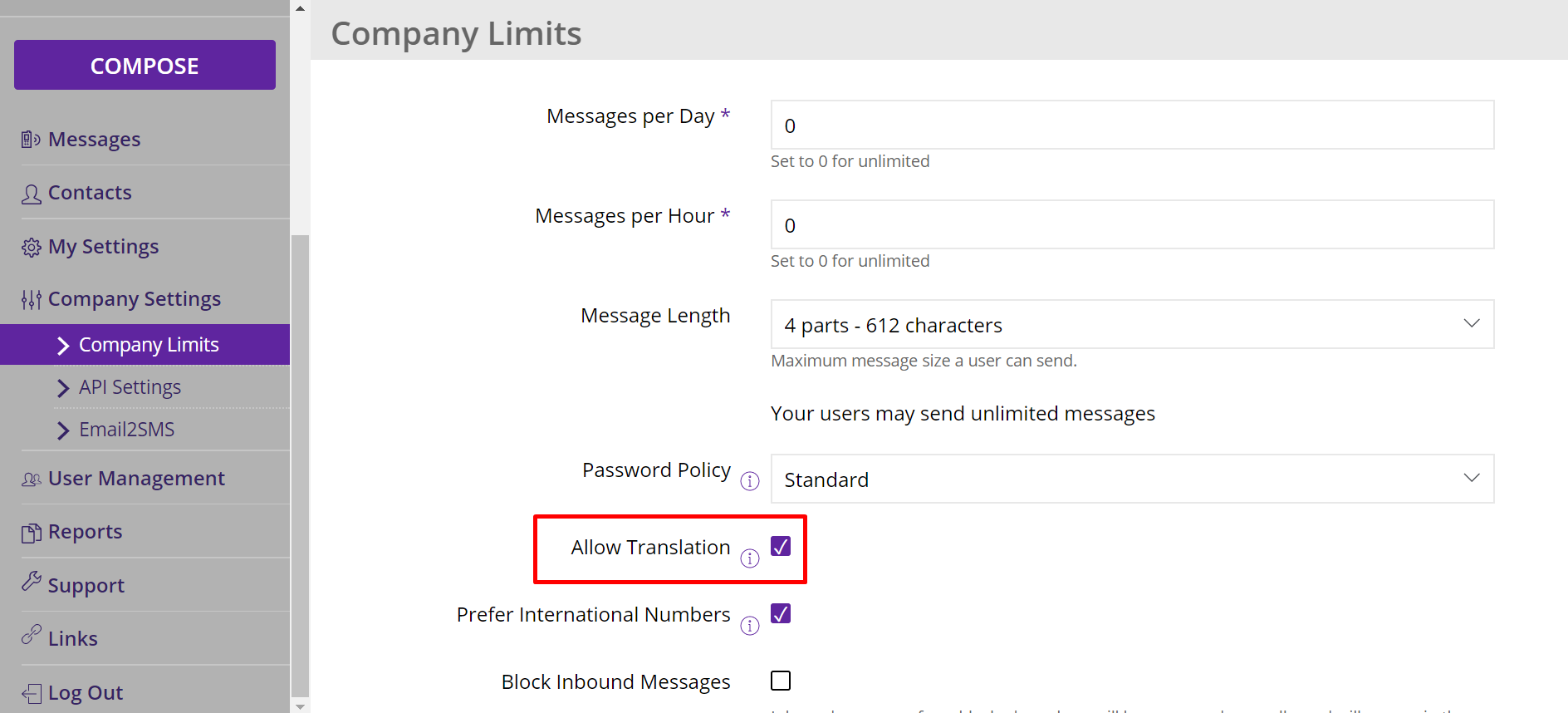
First, you'll need to allow Google Translate to be used by your organisation. To do this, go to Company Settings > Company Limits. From here, tick the 'Allow Translation' box, before scrolling to the bottom of the page and clicking Save.
Sending a Translated Message
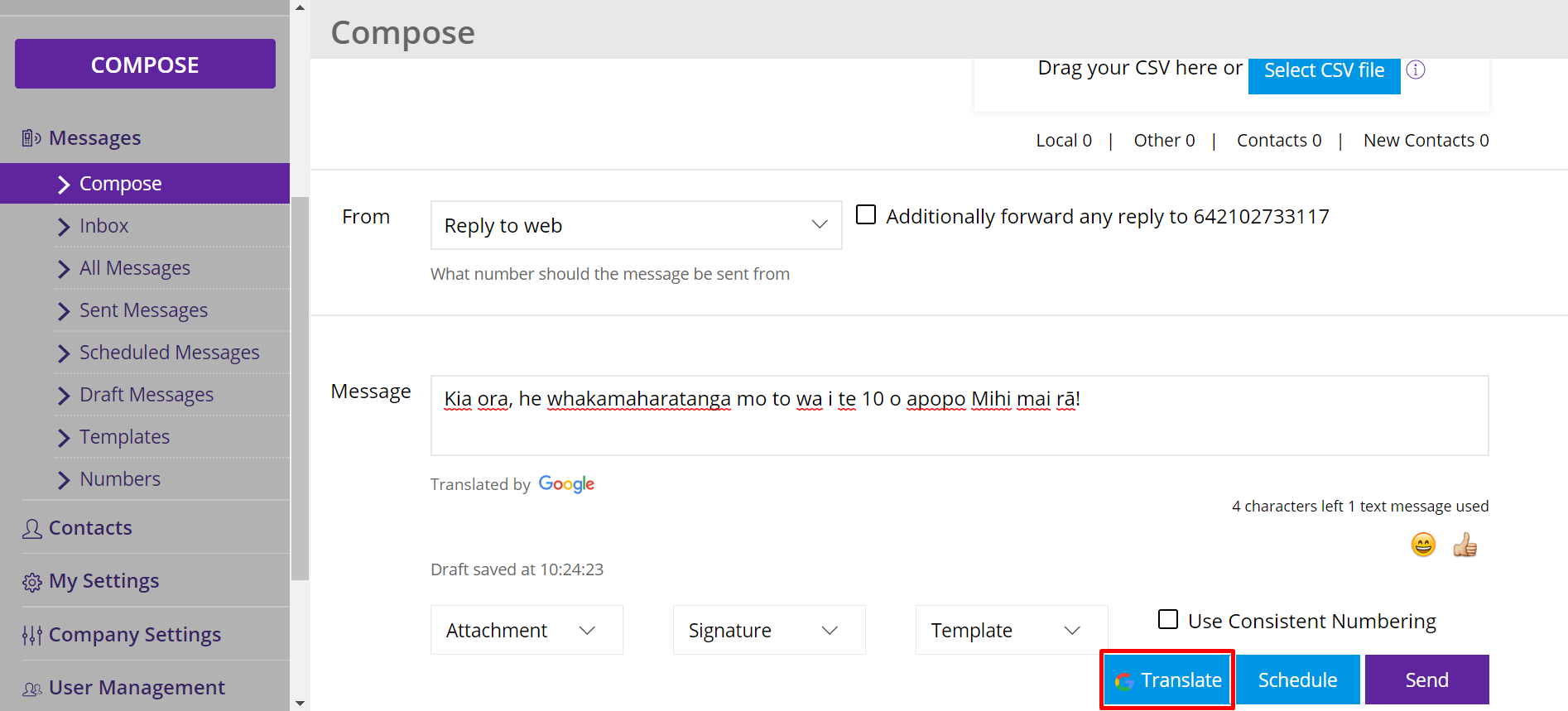
If you'd like to send a message in another language, go to the Compose page and type the message content as normal. Once the message is ready to send, click the blue 'Translate' button in the bottom right corner, and select an option from the drop-down (you can also begin typing a language to narrow your search). Once you have selected a language, the message will translate.
Note: The Google Translate function is only as good as Google Translate is, so make sure your message is very clear before translating, to ensure the message will be translated correctly.
Translating a Message Reply
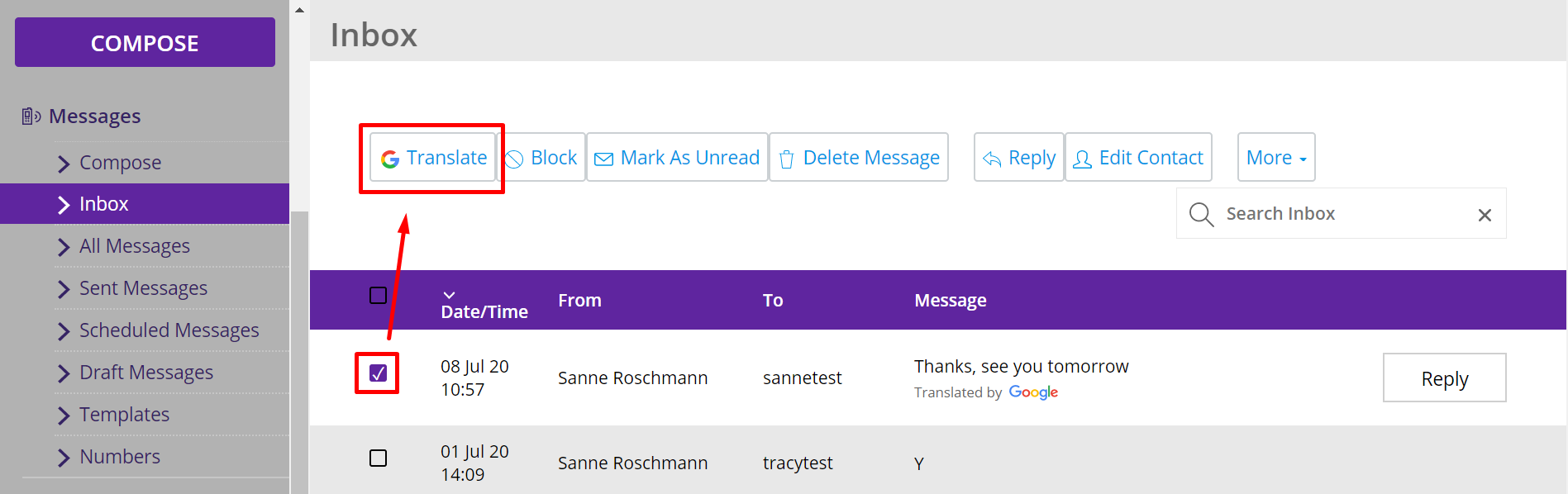
Once you've sent a message in another language, chances are that any replies you receive will come back in the same language. To translate a message reply, go to the Inbox and tick the box of the message(s) you'd like to translate, and a 'Translate' button should appear above the replies. Click the 'Translate' button and select the correct language from the dropdown. Your message will now appear in the selected language.
Tips on Using Google Translate
Creating Groups for Each Language
If you're sending bulk messages in another language, it's helpful to create specific groups for each language. For example, having a group for Mandarin Speakers means that you don't have to individually select each person when sending out a bulk message in that specific language.
Saving language templates
If you're sending similar messages each time - for example, appointment reminders, save the message as a template so you don't need to translate it each time. It also means that if you get feedback from recipients on how the message could sound better, it's easier saving this as a template.
Using non-English characters
When sending a message using characters that are using a 'UTF-16 language', or characters that are not in the English alphabet, your character payload per SMS message part decreases to 70 characters in the first part, 134 characters in the second part and 201 in the third part (compared to 160, 306 and 459 when using English characters, respectively). This is due to the way that SMS is set up to process these characters.
To mitigate the decreased message length, consider using English characters as a substitute (if this is possible). For example, instead of sending a message with ā, use aa. Using the examples below: Ex. 1 has a UTF-16 character in it, so it will send as 2 text messages and use 2 credits. in Ex. 2, the ā, has been replaced with an equivalent aa, so it only sends as 1 text message and uses 1 credit.
Ex. 1: Kia ora Manaia, he whakamaharatanga mo to wa i 10 o apopo. Mihi mai rā!
Ex. 2: Kia ora Manaia, he whakamaharatanga mo to wa i 10 o apopo. Mihi mai raa!