Importing Contacts
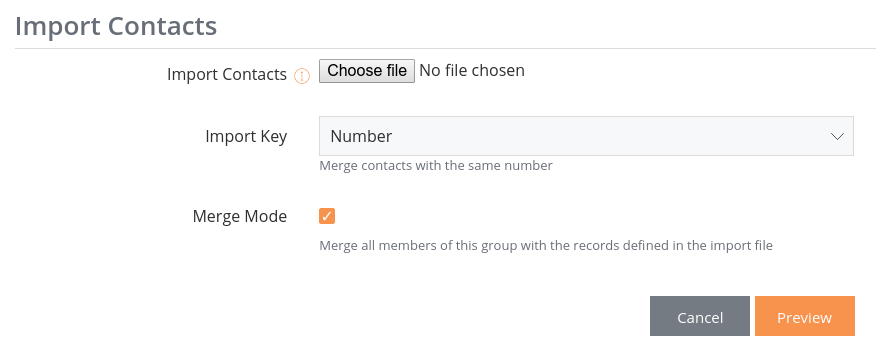
You'll have the ability to import contacts when adding or editing a Group.
Please note: If you want to send a message to a list of recipients one time only, it's easier to go to the Compose page, and import your spreadsheet by clicking Select CSV File.
To import your contacts, you must have a spreadsheet that is in CSV format (in Microsoft Excel, click 'Save As' and then select CSV).
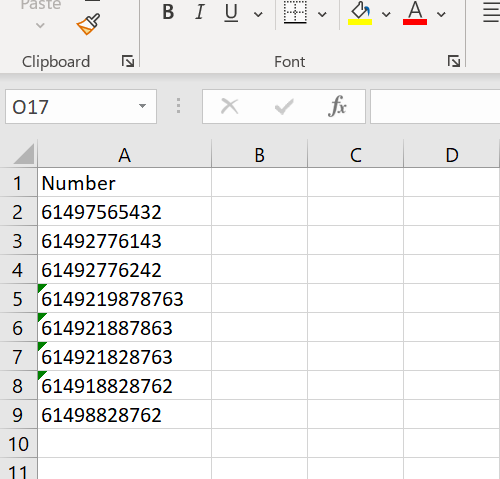
The first line of an import file is the header row. The minimum import is a file with a number header, followed by a number on each line after:
However, we recommend that you at least include the name of the contact in this as well, plus any other important information that needs to be stored about the contact. In the example below, users "John Stamos" and "Nicky Tomb" are in no groups, but "Christine in Accounting" is in the "Work" and "Play" groups: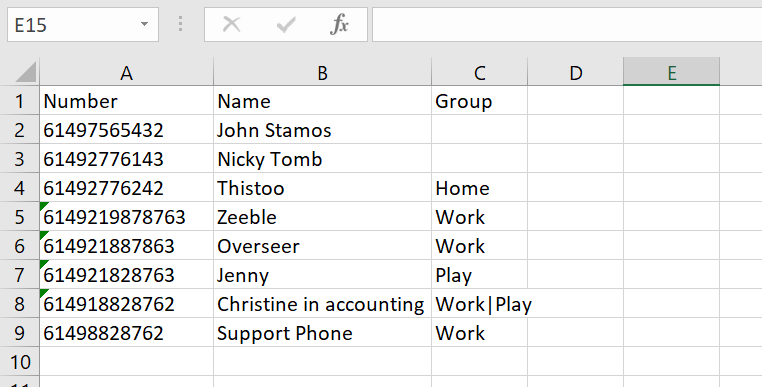
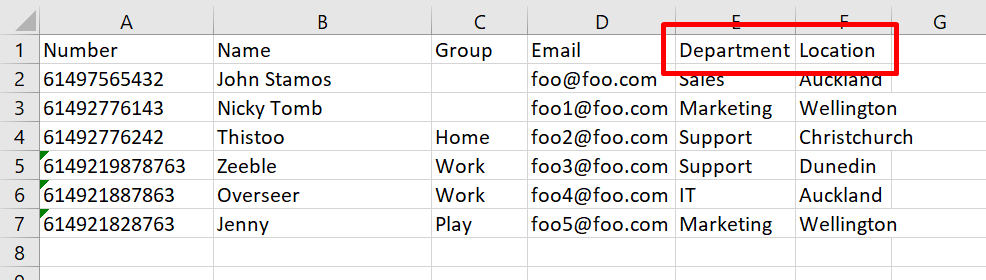
You can import any field to a MyA2P Message Contact - eg. company, position, function, city, department, country. Just remember that if you're importing a custom field, it needs to be added under Contact Settings > Contact Properties before you try to import the list. For example adding contact properties as such:
Means we can import a spreadsheet containing:
Spreadsheet Set-up
IMPORTANT: To ensure you won’t have any errors when importing the CSV, please read the following rules to make sure your spreadsheet is ready to upload.
- Phone numbers must be valid and should be in international format (6427123456 instead of 027123456)
- Phone numbers must not have spaces, hyphens or other characters
- File must be a CSV file (Comma Delimited)
- The file must have headers in row 1 eg. Number, Name, Group, Email
- The data must begin in row 2 (no gap between the headers and data - like the screenshots above)
- Make sure the first column is number, followed by name, followed by any other
-
Ensure that all headers in the file have been added as a Contact Properties in your Contact Settings
- If the spreadsheet contains a header called ‘Location’ make sure you’ve added ‘Location’ into your Contact Properties on My A2P Message
- Remove from the spreadsheet any information that you don’t want stored on My A2P Message
- Each row must have the same number of fields, blanks are acceptable
- Name values must be less than 70 characters long
- Alias must be less than 64 characters
- Alias must only contain alpha-numeric characters, hyphen, underscore or full-stop (no spaces or special characters).
- Email address must be less than 255 characters
- Multiple groups can be defined by pipe-delimiting the "group" field eg. Wellington|Sales
Import Error messages
If you try to import contacts and get an error message in return, it means there's something in the spreadsheet that is not formatted correctly. The possible error messages are:
| Error message |
How to fix this |
Import with an invalid/missing Number header |
My A2P Message can't find the word 'Number' in the first row of your spreadsheet. Make sure the first row of your spreadsheet has 'Number' in cell A1, 'Name' in B1 etc. |
Import with an invalid/missing name header |
My A2P Message can't find the word 'Name' in the first row of your spreadsheet. Make sure the first row of your spreadsheet has 'Number' in cell A1, 'Name' in B1 etc. |
Import a blank file |
There was a problem with import, make sure the file is CSV and the format is plain text (no pivot tables etc.) |
Import with invalid number |
Make sure the mobile numbers are in international format (6427 instead of 027) and there are no spaces, hyphens or special characters in the middle of the number eg. (6427) 123-4567 |
Import with invalid name |
Make sure names do not have special characters or are longer than 70 characters long. |
Import with duplication eg. Alias is duplicated |
There is already a contact in the database with this information saved under their contact. For example, there can only be one contact in your database with a specific alias, so you'll need to update the alias on the spreadsheet to make it different. |
| Alias contains illegal character, is malformed or is too long |
An alias must be less than 64 characters and only contain alpha-numeric characters, hyphen, underscore or full-stop (no spaces or special characters). |
Unrecognised heading 'X' |
If you'd like to store this information on My A2P Message, add 'X' under Contact Settings>Contact properties with the exact same spelling before importing the spreadsheet.
If you wouldn't like to store this information on My A2P Message, delete the column labelled 'X' in the spreadsheet before importing the spreadsheet.
|
| Duplicated number |
Two numbers in the column containing phone numbers are duplicated. This error message will tell you which row of the spreadsheet has a duplicated number so you can remove it. |
If you've checked this and you're still not sure why your spreadsheet won't import, you can send your spreadsheet to the Support team and they will be able to help you get it in the correct format.
Importing via HTTP POST
As well as being able to import Contacts interactively, we also offer the ability to import Contacts via an HTTP POST to the abimport.jsp URL.
The http parameters are as follows:
| Parameter |
Meaning |
username |
Your My A2P Message user login |
password |
Your My A2P Message user password |
absid |
The System Identifier of the Group you wish to import into. (Recommended) |
abalias |
The Alias of the Group you wish to import into. (Alternative to absid) |
abname |
The Name of the Group you wish to import into. (Alternative to absid. Not recommended, because it will fail if the Group is renamed) |
abid |
The legacy 'Address Book Id' of the Group you wish to import into. (Alternative to absid. Not recommended, and will not work for newly created Groups) |
merge |
Do you wish to use 'Merge Mode' or not? Valid values: 'true' or 'false'. Defaults to 'false |
key |
Which field would you like to use as the Import Key. Defaults to you Company's 'Contact Key' as defined in 'Contact Settings'. Options are:
- number
- name
- email
- alias
- publicid (ie: Public Identifier)
- systemid (ie: System Identifier)
|
This is best illustrated via an example using cURL:
curl -k -F "username=foo" -F "password=bar" -F "absid=G#272478" -F "key=number" -F "merge=true" -F "file=@test.csv" https://www.a2pone.shortcode.co.nz/abimport.jsp